Quick Start
Get your first tour running in 5 minutes
Follow these steps to create your first product tour. Each step includes a visual guide to help you navigate the dashboard.
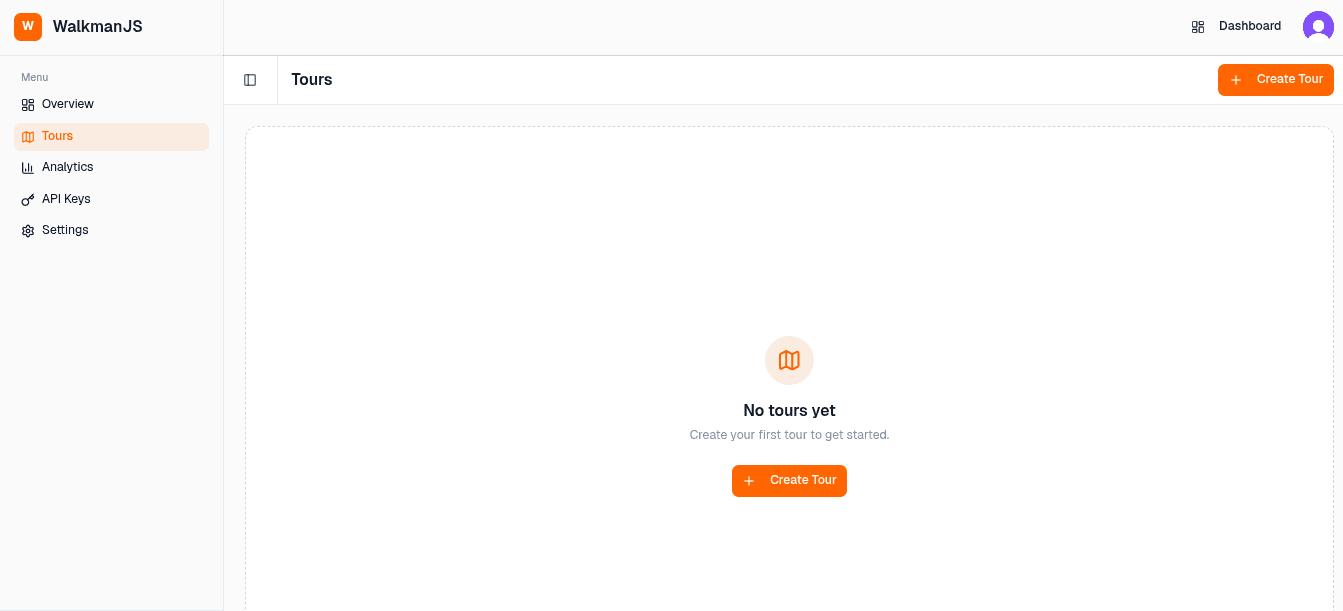
Navigate to Tours
From your dashboard, click on 'Tours' in the sidebar menu. If you haven't created any tours yet, you'll see an empty state with a 'Create Tour' button.
Create a New Tour
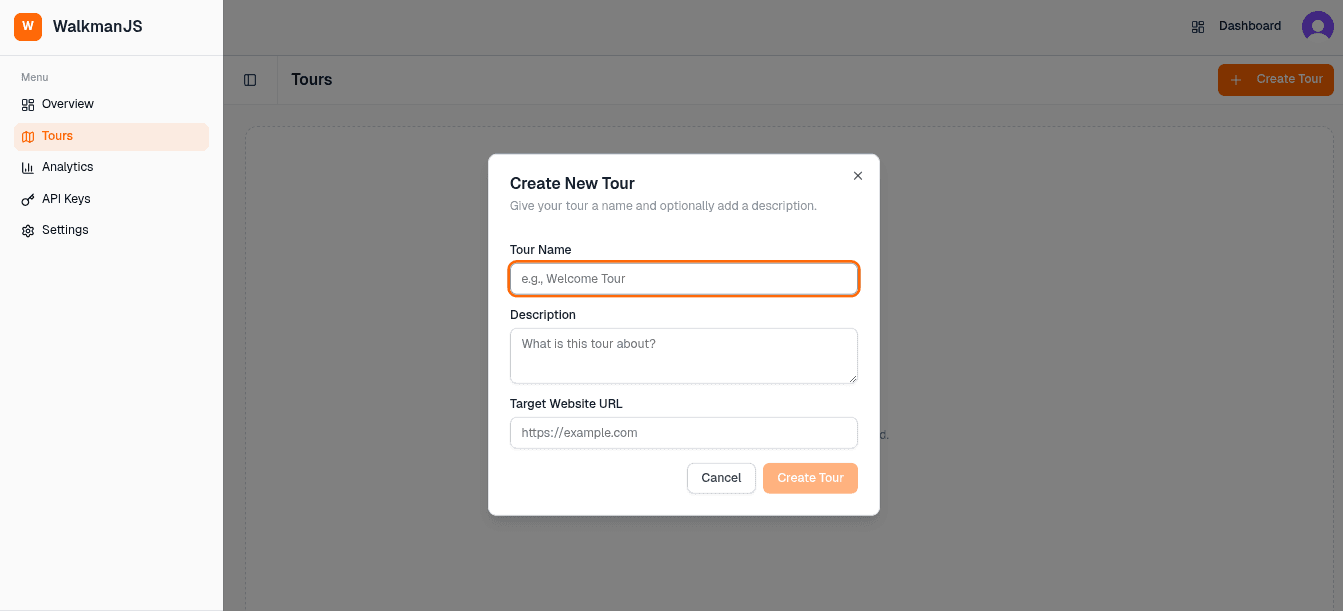
Click the 'Create Tour' button to open the creation modal. Enter a name for your tour (e.g., 'Welcome Tour'), add an optional description, and specify your target website URL where the tour will run.
Add Tour Steps
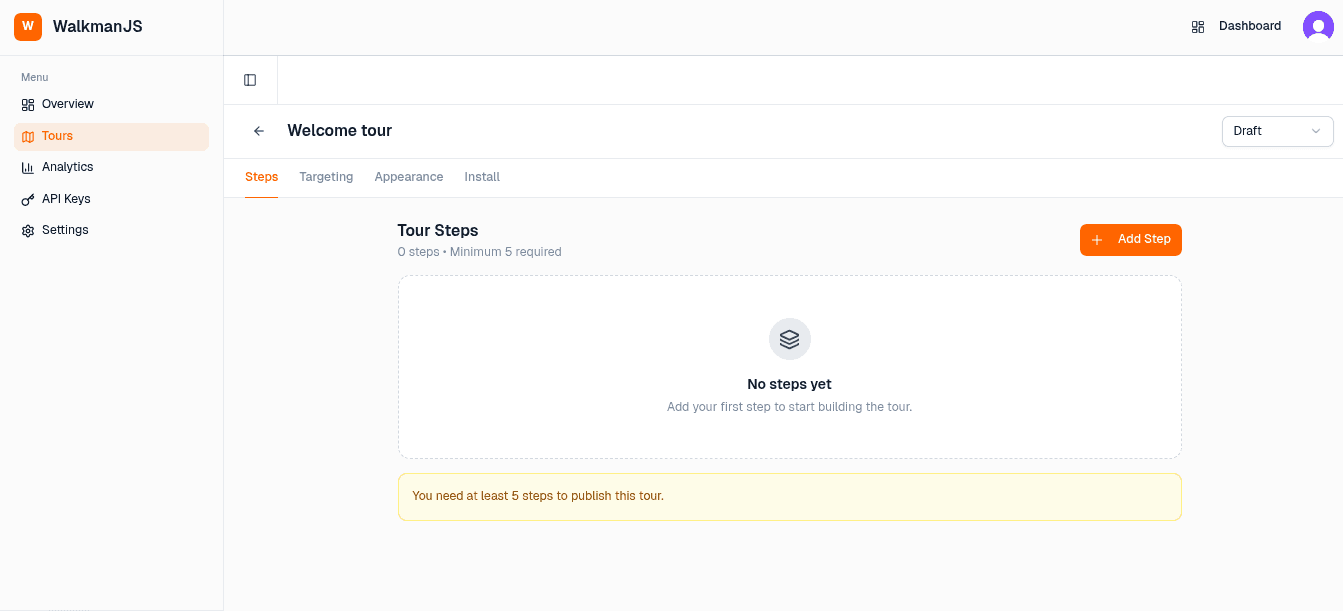
After creating your tour, you'll be taken to the Steps tab. Click 'Add Step' to create individual tour steps. Each step requires a title, description, CSS selector (to target the element), and position. You need at least 5 steps to publish a tour.
Configure Your Steps
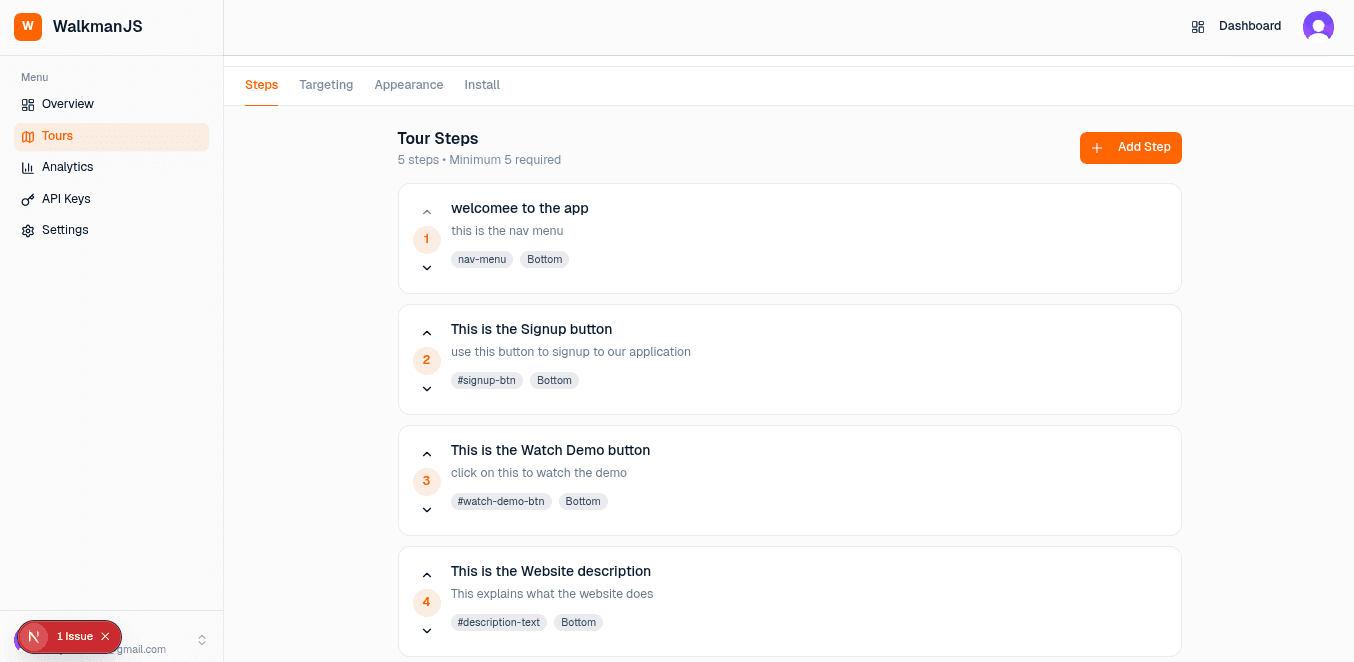
For each step, provide a descriptive title, helpful content, the CSS selector of the target element (e.g., #signup-btn or .nav-menu), and choose where the tooltip should appear (Top, Bottom, Left, or Right).
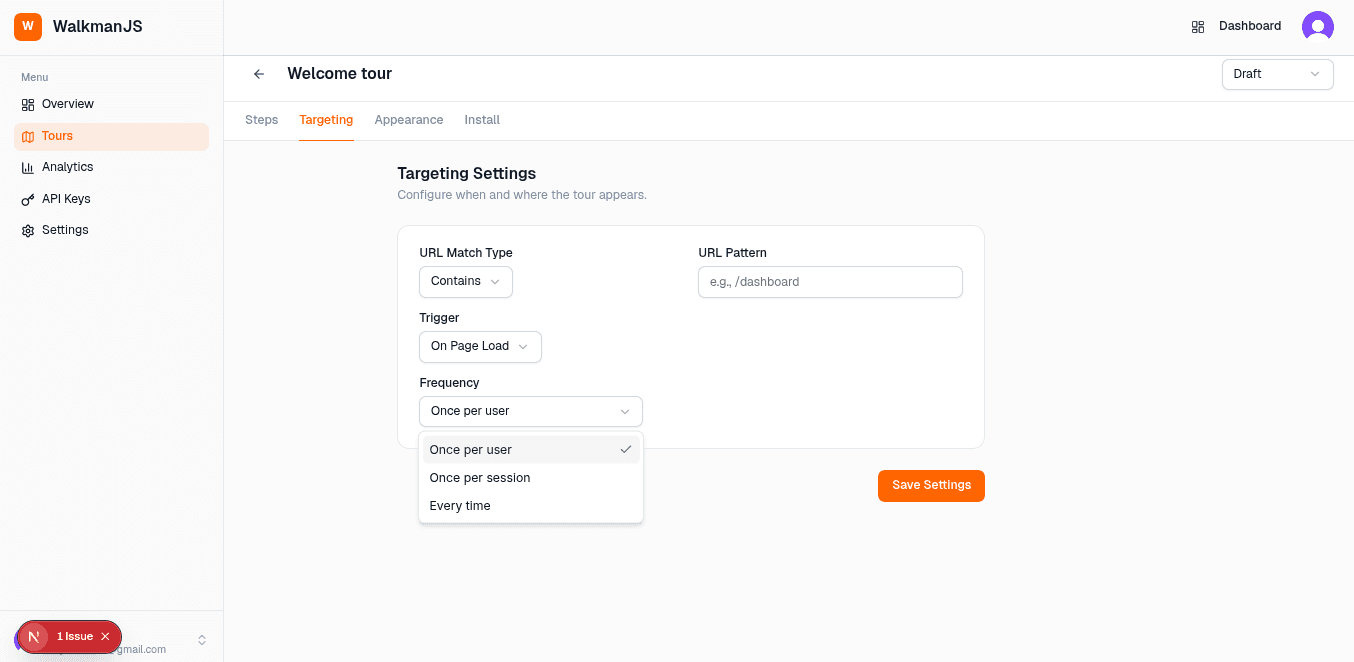
Set Targeting Rules
Navigate to the Targeting tab to configure when and where your tour appears. Set the URL match type (Contains, Exact, Regex), specify the URL pattern, choose a trigger (On Page Load, On Click, On Delay), and set the frequency (Once per user, Once per session, Every time).
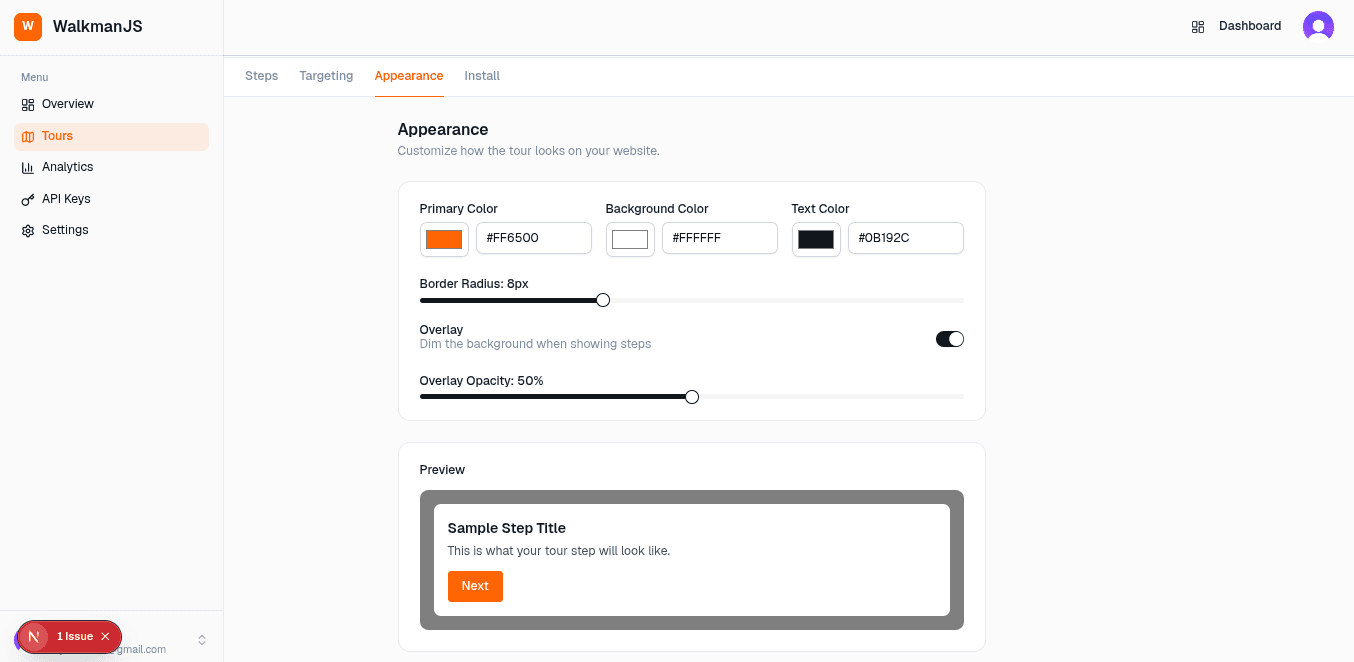
Customize Appearance
In the Appearance tab, customize how your tour looks. Set primary, background, and text colors using hex codes. Adjust the border radius, enable the overlay to dim the background, and set the overlay opacity. Preview your changes in real-time.
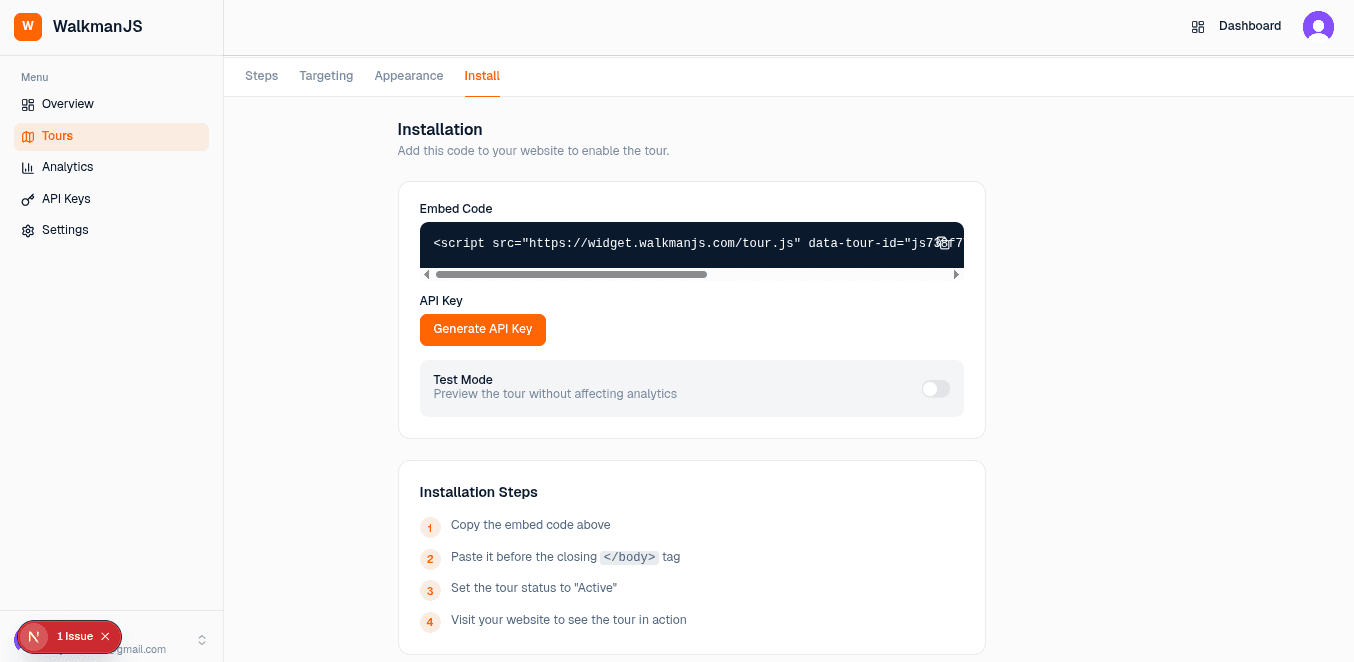
Install on Your Website
Finally, go to the Install tab to get your embed code. Copy the script tag and paste it before the closing </body> tag on your website. Generate an API key if needed, and use Test Mode to preview without affecting analytics. Set the tour status to 'Active' when ready.
Pro Tips
Use Specific Selectors
Use IDs (#element) when possible for reliable targeting. Class selectors (.class) work too but may match multiple elements.
Keep Steps Concise
Each step should focus on one action. Short, clear instructions lead to better completion rates.
Test in Preview Mode
Always test your tour in Test Mode before going live. This won't affect your analytics data.
Mobile Responsive
Tours automatically adjust for mobile devices. Test on different screen sizes for the best experience.
Installation Code
<!-- Add this script before the closing </body> tag -->
<script
  src="https://widget.walkmanjs.com/tour.js"
  data-tour-id="YOUR_TOUR_ID"
  data-api-key="YOUR_API_KEY"
></script>
Replace YOUR_TOUR_ID and YOUR_API_KEY with the values from your Install tab. The script will automatically load and display your tour based on your targeting rules.